Single sign-on (SSO)
The SSO section of the admin portal lets you connect your organization's identity provider so members can sign in with their corporate credentials.
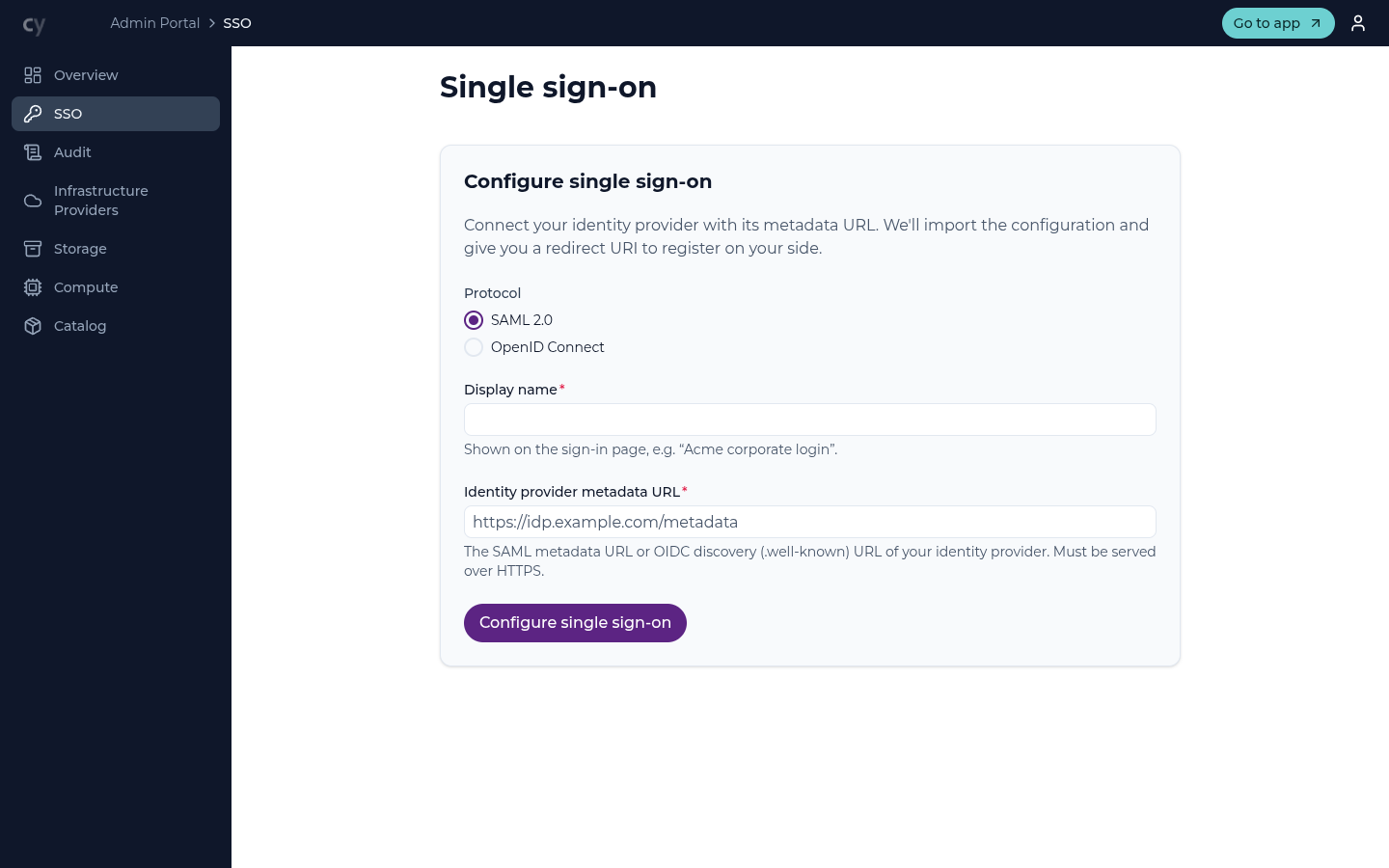
Configuring SSO
Choose Configure single sign-on and provide:
| Field | Purpose |
|---|---|
| Protocol | SAML 2.0 or OpenID Connect |
| Display name | How the provider is shown on the sign-in page (for example "Acme corporate login") |
| Identity provider metadata URL | Your IdP's SAML metadata URL or OIDC discovery (.well-known) URL, served over HTTPS |
| Client secret | OIDC only: the client secret your identity provider issued for Cytario |
Cytario imports the provider configuration from the metadata URL and gives you the redirect URI to register on your identity provider's side.
Prerequisites
- An active subscription — configuring or enabling single sign-on is part of a paid plan. Viewing, disabling, or removing an existing configuration is always available.
- Access to your email domain's DNS records — sign-in routing is granted only after you prove control of the domain (see below).
Verifying your email domain
Before sign-ins route to your identity provider, you prove control of the email domain your members use:
- In the Domains section of the SSO page, add the domain (for example
acme.com). - Cytario shows a DNS TXT record to publish:
| Record | Example |
|---|---|
| Host | _cytario-sso.acme.com |
| Type | TXT |
| Value | cytario-sso-verify=<token> |
- Publish the record with your DNS provider and choose Verify. DNS propagation can take a few minutes — if verification fails, wait and retry.
- Once verified, the domain belongs to your organization. A domain can be verified by only one organization across Cytario, and a verified domain must remain published: it is re-checked periodically, and if the record disappears, sign-in routing for the domain is suspended until it returns.
Enabling and disabling single sign-on
Sign-in routing requires at least one verified domain.
- Enable — members signing in with an email address on a verified domain are routed to your identity provider.
- Disable — routing stops; the configuration and your verified domains are kept for later re-enable.
- Delete — removes the SSO configuration and its domains.
Every SSO action is recorded in your organization's audit log.
How it works
Once enabled, your members sign in through your identity provider rather than a shared sign-in page. A member opening Cytario enters their work email; if the email's domain matches one of your verified domains, they are redirected to your identity provider, sign in there with their corporate credentials, and return to Cytario. Emails on other domains sign in with their Cytario password as usual.
The portal keeps single sign-on details per organization, and user access is managed by your organization.
Inviting members to an SSO organization
Do not invite members who should use SSO
The invitation email starts Cytario's own account registration, which asks the recipient to create a Cytario password — and a member with a Cytario password signs in with that password instead of being routed to your identity provider.
For members who should sign in with SSO, do not send an invitation: add their email domain under Domains (see above), and ask them to open Cytario directly and sign in with their work email. Their account and organization membership are created automatically on their first corporate sign-in.
Use invitations only for members who should keep a Cytario password — for example external collaborators whose email address is not on a domain you verified.
Existing password users and SSO
A member who already has a Cytario password keeps signing in with that password; Cytario does not automatically switch them to your identity provider. A member who previously used a password and now wants to sign in through SSO — or an administrator who wants to enforce corporate sign-in for such a member — should contact Cytario support: support removes the member's local password so their next sign-in goes through your identity provider.