Sign in and your first look
The first thing you do is sign in with your organizational account.
Signing in
Cytario uses your organization's identity provider for sign-in. In the hosted offering, go to your instance's address and sign in with your work email:
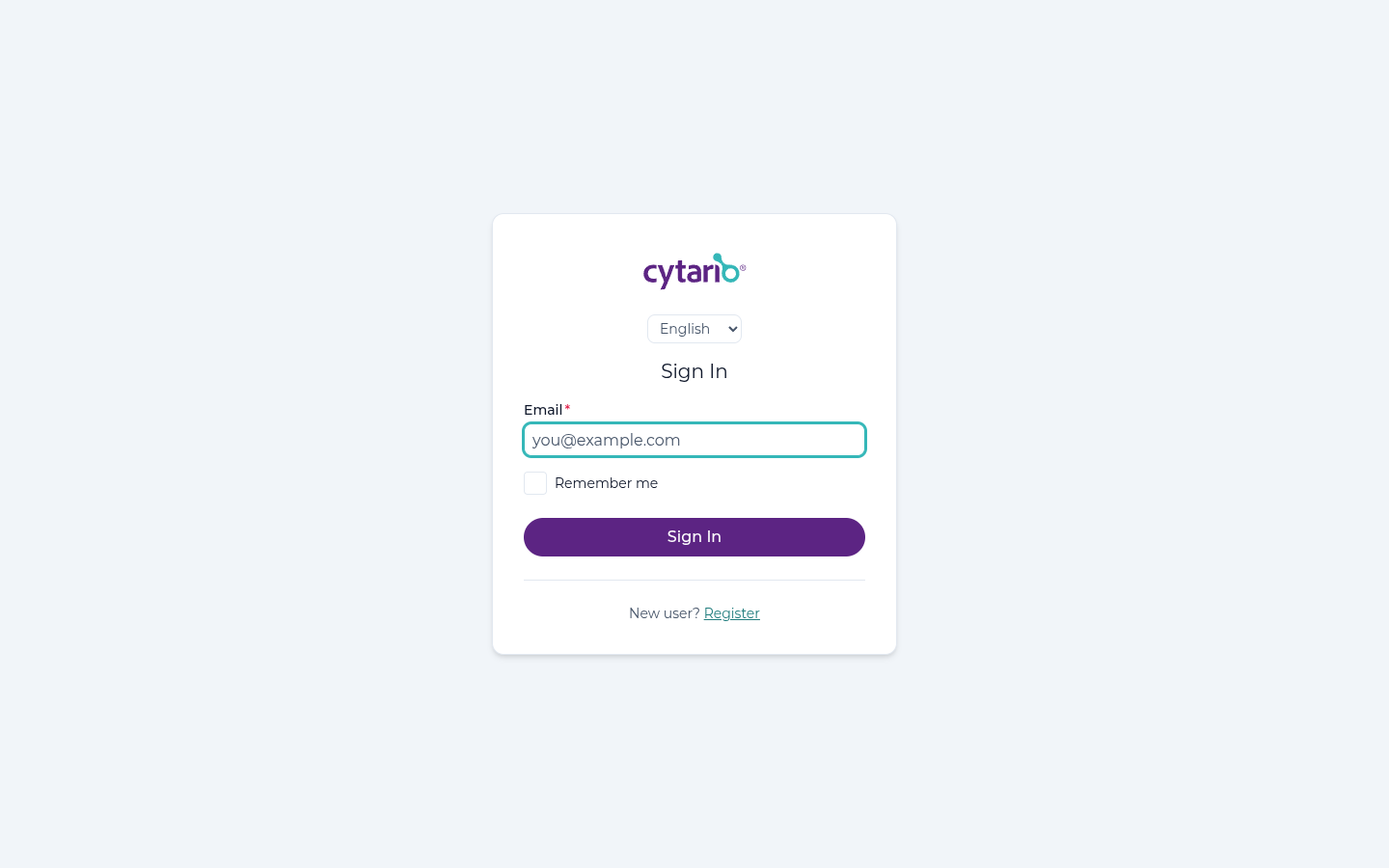
- Enter the email address your organization registered for you.
- If your organization has single sign-on configured and your email is on one of its verified domains, you are automatically redirected to your organization's identity provider and sign in with your corporate credentials — you never see a Cytario password prompt.
- If you have more than one organization — for example you consult for several customers — you choose which organization context you enter at sign-in. Your data and access are scoped to the organization you pick, and switching contexts means signing out and back in.
Your first look: the home screen
After sign-in you land on the home screen. Its left navigation groups the platform into areas:
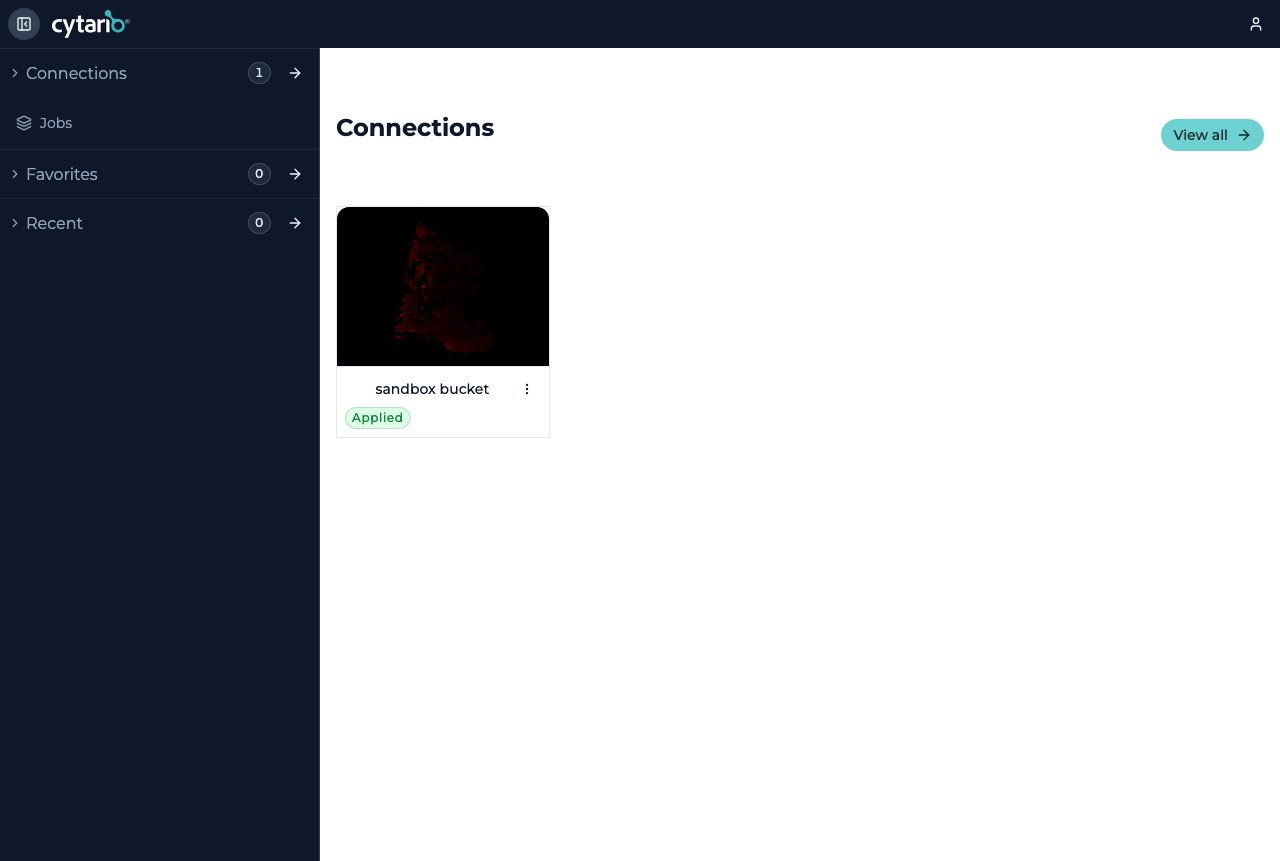
| Area | What you do there |
|---|---|
| Connections | The object stores your organization has connected, and the buckets/folders you can reach |
| Jobs | Image-processing and analysis jobs (only if your organization has compute enabled) |
| Favorites | Folders and items you have pinned for quick access |
| Recent | Items you have viewed recently |
Your home screen shows your connected storage and any favorites or recent items. If this is your first time and your administrator has not yet connected storage, continue to Connect your storage.
No organization yet?
In the hosted offering, a user who signs up but is not yet a member of any organization is guided to the onboarding wizard to create one before using the platform. In self-hosted deployments your administrator provisions your account ahead of time.