Annotations
Annotations let you draw and record points of interest directly on a slide, so you can mark regions and share them within your organization.
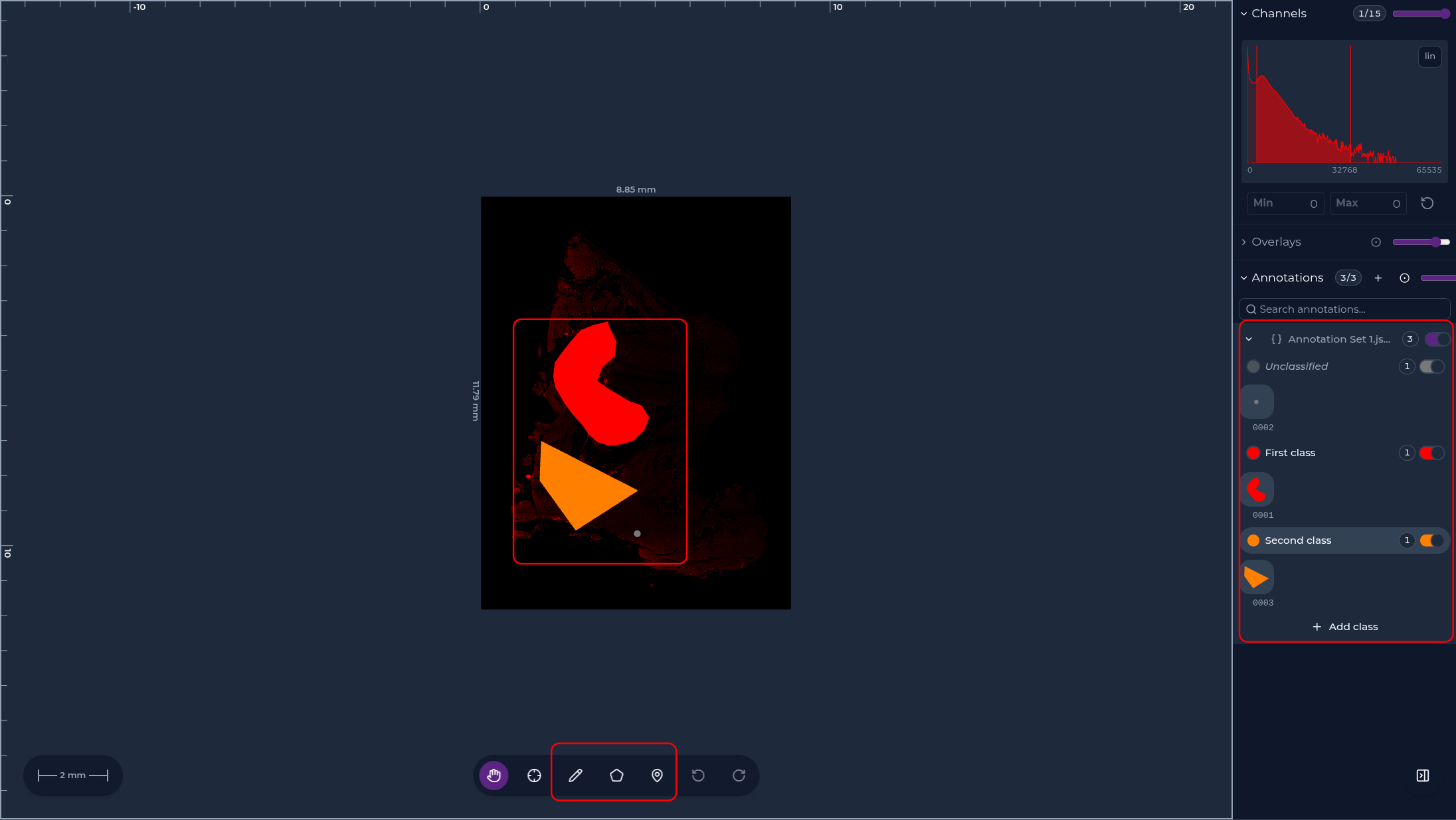
Drawing annotations
- In the Image controls panel, under Annotations, switch the layer on.
- Use the drawing tools to mark regions on the image.
- The box tool draws rectangles two ways: drag on the image to draw a free rectangle, or enter a size and then click to stamp a square of exactly that size — handy for marking uniform training regions quickly. A dashed outline preview shows the stamped extent before you click.
- Control the annotation opacity so your marks sit over the tissue without hiding it.
Selecting annotations
Annotation thumbnails in the list can be selected, in one set or across all sets on the image:
- Click a thumbnail to select just that annotation.
- Cmd/Ctrl+click to toggle annotations in and out of the selection — anywhere in the list, including across set blocks.
- Shift+click to select the whole run of annotations between your last plain click and the one you click now, following the order shown in the list. The run may cross set boundaries.
Classifying annotations
Each annotation can carry a classification — a category you assign to the mark, such as a cell type or a finding.
- Draw an annotation unclassified when you only want to mark its location.
- Classify it by assigning a class from the annotation's class picker.
- Change an annotation's class later: select the mark and pick a different class. Reclassifying updates the stored class without redrawing the shape.
- Each class has its own color, so classes stay distinguishable at a glance — the mark is drawn in its class's color.
Deleting annotations
- Select one or more annotations (click, then Shift or Cmd/Ctrl-click for multiple) and press Delete or Backspace — or use the annotation's menu Delete entry.
- Deletions can be reversed with the viewer's Undo control.
- On a read-only connection, delete is unavailable.
Annotation files
Annotations are stored as JSON files next to your data (for example
USL-…-42.annotations.<id>.json), so they travel with the image and can be
opened again in context.
Related
- Viewing slides — the image controls panel and layers.
- Overlays & quantitative analysis — quantitative layers on the same image.