Image processing jobs
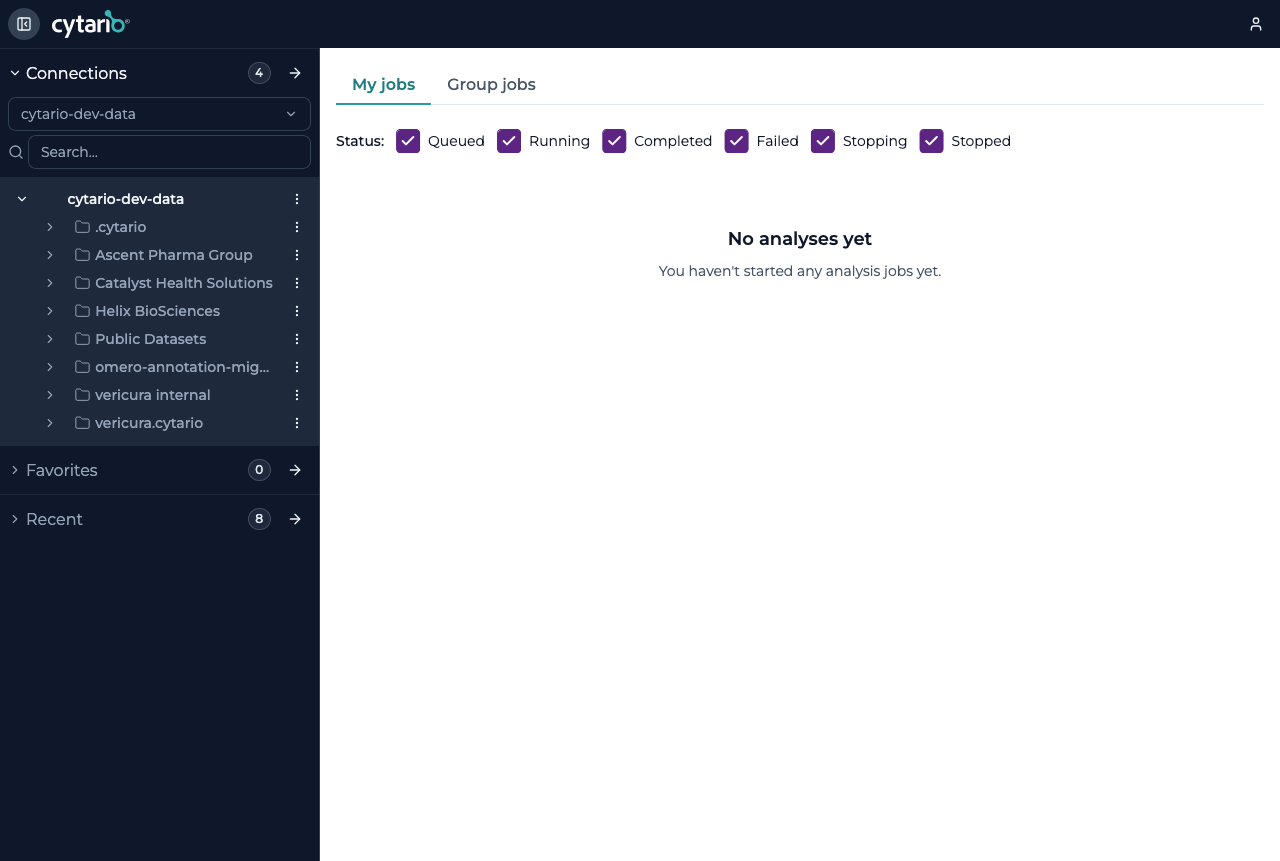
The Jobs screen is where you track the analyses you (and, if you administer a group, the groups you manage) have started. It is reached from Jobs in the navigation.
Viewing jobs
The table lists all of your organization's analysis jobs on its compute provider — everyone in the organization sees the same queue. When your organization connects more than one compute provider, a provider selector appears above the table so you can switch between them; with a single provider the selector stays out of the way. To focus on your own analyses, tick Submitted by me — the list then narrows to the jobs you started (the checkbox only affects this view and resets on your next visit).
The table is fully interactive:
- Sort by any column — click a column header to switch between ascending and descending order. Newest submissions are shown first by default.
- Filter per column — the Application and Submitted by columns accept free-text filters, while Group offers a selection of the groups present in your list.
Your sorting and filter choices are remembered between visits.
Filtering by status
The Status column has its own filter — pick one status from the list to show only jobs in that state. A job can be:
| Status | Meaning |
|---|---|
| Queued | Waiting for compute |
| Running | In progress |
| Completed | Finished successfully |
| Failed | Finished with an error |
| Failed — insufficient memory | The job was killed for exceeding its memory request |
| Stopping / Stopped | Being or already canceled |
Monitoring & outputs
Open a job (click its application name) to see its progress and details. The detail view also lists the parameters the job ran with — the record of how its result was produced — alongside links straight to the job's input and output locations. When a job completes, its outputs are written back to your organization's storage, and you can locate and open them from there — for example the resulting Parquet segmentation overlays and tables you load in Overlays and the Data grid.
Batches
Analyses are submitted in batches — one job per image — and the table gathers each batch's jobs under a single heading row: the batch's short identifier (the first characters of its ID), its size, and how many of its jobs are running, have succeeded, and have failed. Tick the arrow beside a batch to fold its jobs away or show them again. The jobs underneath are ordinary rows of the table — the same columns and the same details as any other job, and each opens its own details when you click it. A batch opens by itself while any of its jobs is still running or has failed, and folds together once everything has settled. If the table is showing fewer jobs of a batch than the batch was submitted with, the heading says so (for example "a4f9c2e1 · 3 jobs (2 listed)").
You can give a batch a name when you submit it — an optional label in the run form's Batch defaults panel, shown beside the identifier on the jobs list and in each job's details. Names are just labels: two batches can share one, and the identifier stays the way to tell them apart. The most recently submitted batches are listed first.
Each batch's heading row carries a Relaunch batch action that re-opens the run form filled in with the batch's original configuration — the same application, parameters, inputs, and output location — ready for you to tweak anything before running it again. Older jobs that were submitted before batches were tracked get a heading row of their own, so they appear in the list as ordinary rows.
Logs
The job detail view also shows the job's logs — the output streamed from the analysis container. Messages appear in the colors the application printed them in, so warnings and highlights stay easy to pick out. The log pane keeps a fixed height and scrolls on its own, so even a chatty job never pushes the job's details out of view.
Re-running a job
To run the same analysis again — with the same application, parameters, inputs, outputs, cluster, and resources — use Relaunch:
- In a job's detail view, to re-run that job.
- In a batch's progress header, to re-run the whole batch.
Relaunch opens the run form pre-filled with that job's earlier configuration, so you can start it again exactly as it was, or change anything you like first.
A job submitted without a saved configuration cannot be reproduced exactly, so its Relaunch action is disabled. This is deliberate: the alternative would be a partly reconstructed configuration that is not what actually ran. The job's own detail view, its logs, and its status and timeline stay fully available — only Relaunch is unavailable.
Availability
The Jobs entry appears only when your organization has compute enabled. All compute activity is confined to the organization you entered at sign-in — you never see an application or job from another organization.
See Running an analysis for how to start a job.