Browse your data
Once storage is connected, the object browser lets you move through the folders and files inside a connection just like a file manager.
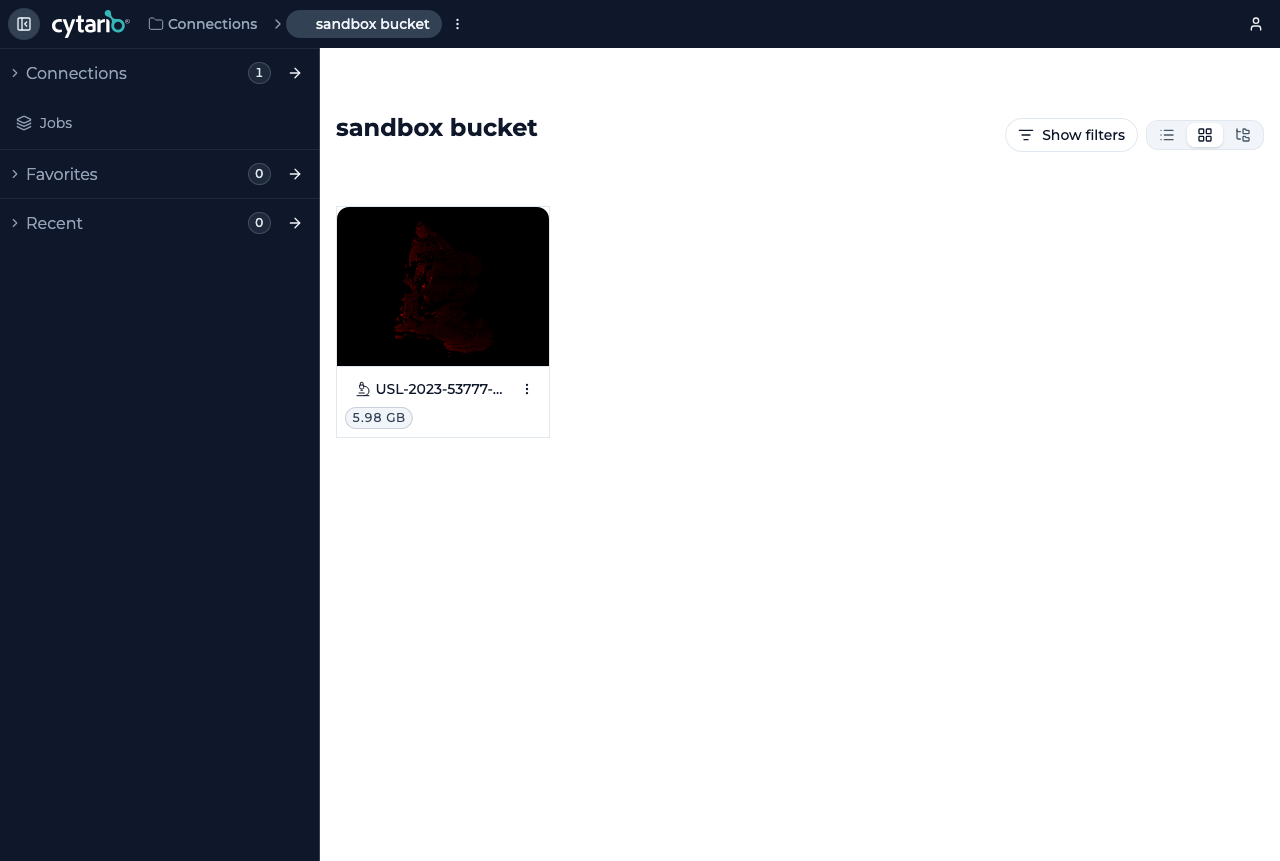
Views
The browser offers three ways to look at your data:
- List view — a compact table of files and folders.
- Grid view — thumbnail-style cards (the default).
- Tree view — a nested folder tree.
Switch between them with the View mode control at the top of the browser.
Finding what you need
- Filters — narrow the current folder with the Show filters button.
- Search — search across multiple buckets by file name or path prefix from the Search screen.
- Favorites — pin folders or items you use often; they appear in the Favorites area of the home screen for quick re-access.
- Recent — Cytario tracks items you have viewed, listed in the Recent area.
Opening an image
An image file (for example an OME-TIFF whole-slide scan) opens in the image viewer — continue to View a slide.