Connect your storage
Before you can browse or view anything, Cytario needs a storage connection — a bucket (or a folder within one) on an S3-compatible object store that your account is allowed to reach. Everything you do — browsing, viewing, analyzing — is done against these connections.
The core idea
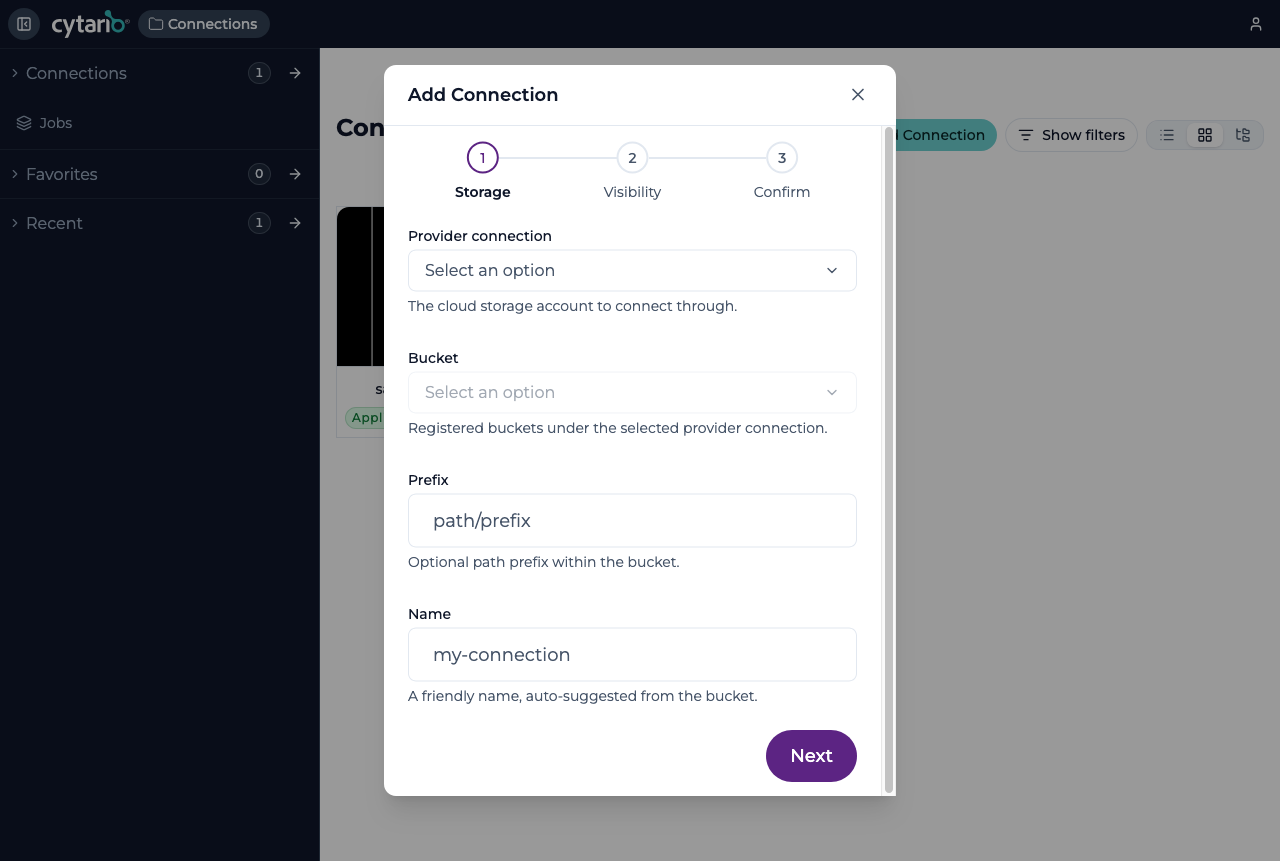
A connection is made up of:
- Provider connection — the cloud storage account to connect through.
- Bucket — a registered bucket under that account.
- Prefix — an optional path inside the bucket.
- Name — a friendly label for the connection, auto-suggested from the bucket.
Adding a connection
On the home screen, open Connections and choose Add Connection. Select a provider connection (your account offers one or more), then the bucket, optionally narrow with a prefix, and give the connection a name. You choose the visibility (which groups in your organization can use the connection) and confirm.
How storage gets connected differs by edition
- Hosted (SaaS) and Enterprise: your organization admin connects the organization's own cloud storage account (AWS or RustFS) through a guided setup in the admin portal — no cloud identity-and-access hand-crafting required. The buckets available to choose from are registered there.
- Self-hosted (on-premises) and open-source: the connected accounts and their access roles are provisioned by your operator before you use the platform; connecting a bucket or folder is then the same Add Connection flow shown above. Operators see Connecting storage for AWS and RustFS storage onboarding for S3-compatible storage.
Opening a public dataset
A public connection points at a bucket that is readable by anyone — its own public-read bucket policy is the entire entitlement. Cytario holds no credential for it, asks for none, and never writes to it: the connection is read-only. Browsing, viewing, and searching work as on any connection; annotating, editing, and sharing do not. For bulk download, the Access with Cyberduck menu item works here too: Cyberduck connects to the bucket anonymously, with no credentials.
The Public provider connection is built in — it appears in every deployment's Add Connection form, no setup by anyone required. You pick it and type the bucket's name, leaving the optional Endpoint field empty for AWS — it is meant for public S3-compatible mirrors (MinIO, RustFS, and the like). A deployment's operator can still change the default endpoint or disable the provider (deployment configuration); nothing you do as a user changes that.
Two things must be true about the bucket itself, and only the bucket's owner can make them true:
- It must allow public listing. A bucket that serves its objects publicly but forbids anonymous listing cannot be browsed, and Cytario refuses it.
- It must allow cross-origin reads. Cytario cannot add the rule for you — a bucket without a cross-origin (CORS) rule cannot be displayed in the browser at all. When you connect such a bucket, Cytario warns you with the exact rule to add:
[
  {
    "AllowedOrigins": ["*"],
    "AllowedMethods": ["GET", "HEAD"],
    "AllowedHeaders": ["*"],
    "ExposeHeaders": ["ETag"]
  }
]
Public connections are marked Managed externally — the bucket's policy belongs to its owner, not to Cytario.
Who sets up a public provider
Nobody, for the basic case — the Public provider is part of Cytario itself, so you can connect a public bucket right away. Only a deployment's operator can change the default endpoint or turn the provider off; that is a deployment setting, not an admin-portal step. If your dataset lives on a non-AWS public S3-compatible backend, you type its endpoint in the form yourself.
Sharing a folder
When you can reach a folder, you can share it with another group in your organization by naming the group and picking the access role it receives. Cytario applies the matching access boundary on the storage where your own privileges allow and warns whenever it cannot, so access is never widened unintentionally.
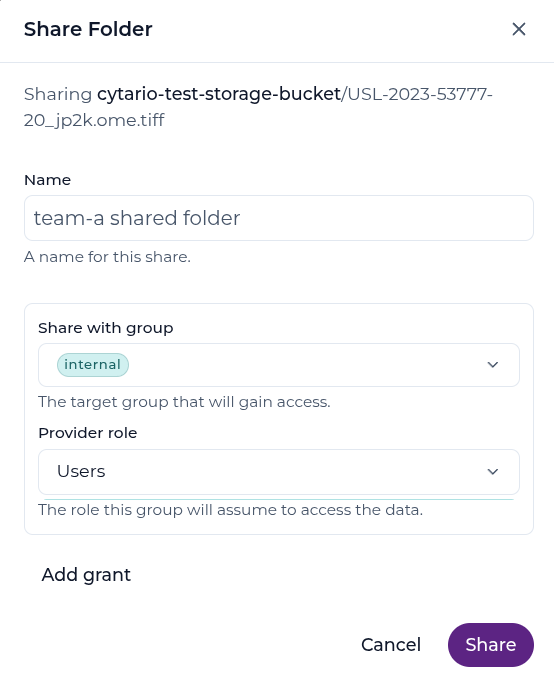
See Sharing a folder in the object browser reference for the full flow.