Object browser
The object browser is where you move through the folders and files inside a connection, just like a file manager. Open a connection to browse its contents.
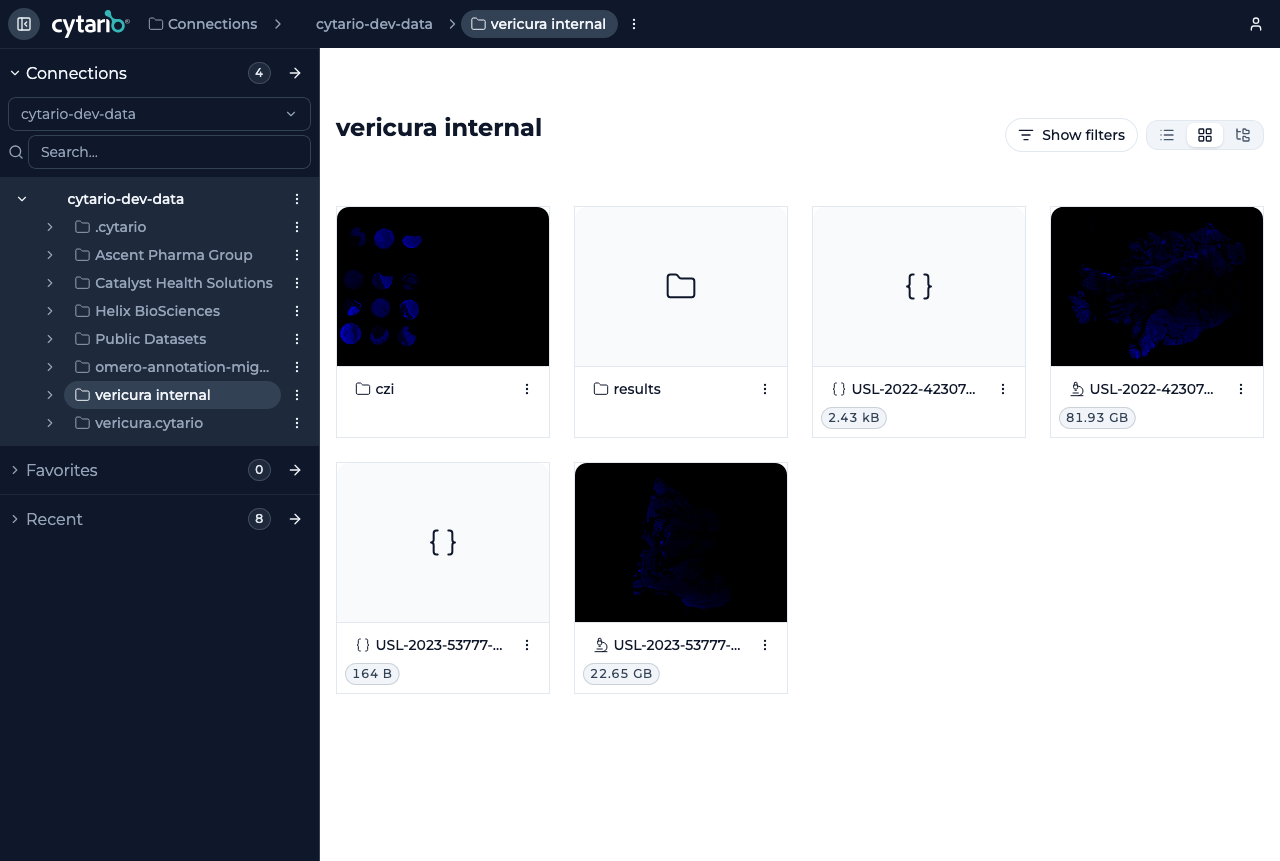
The navigation sidebar
On the left, the navigation panel groups the whole platform and gives you a directory tree of the current connection so you can jump between folders without going back up. At the top of the tree you can switch the active connection and search within it.
View modes
Use the View mode controls to change how the current folder is displayed:
- List view — a table of files and folders with names and sizes.
- Grid view — thumbnail-style cards (the default).
- Tree view — a nested folder tree.
What you see in a folder
- Folders and sub-folders open into them when clicked.
- Files — images (for example OME-TIFF scans), overlays (Parquet),
tabular data, JSON/metadata files, and Markdown notes (
.md, such as a README) — each showing its size. - The Actions button on any item opens item-specific options (favorite, share, and more).
Reading and editing a text file
Text files — JSON, YAML, notes, and Markdown (.md, such as a README) — open
in view mode: Markdown files render as a formatted document (headings, lists,
tables, code blocks, and links), other text files display as plain text. Use
Edit to switch to the editor and Save to write changes back to the
file; Back to view returns to the document without losing unsaved edits.
Sharing a folder
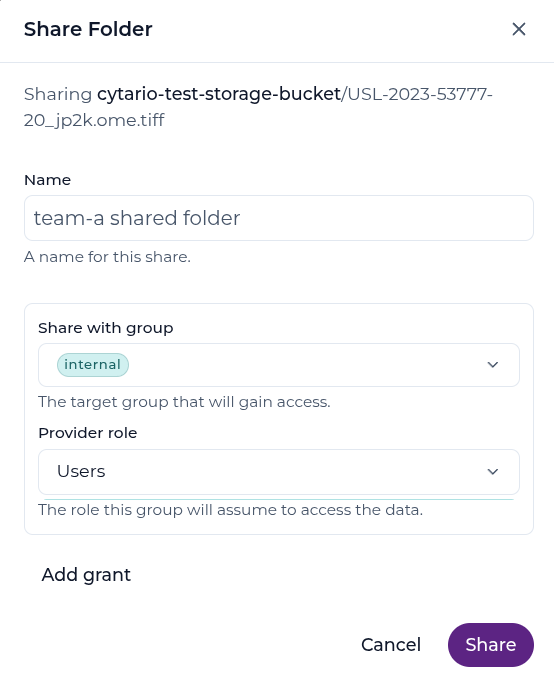
When you can reach a folder, you can share it with another group by naming the group and picking the access role it receives. Cytario applies the matching access boundary on the storage where your own privileges allow, and warns whenever it cannot, so access is never widened unintentionally. A single connection can carry several group-and-role grants — different teams receiving different access levels against the same data — and an admin can adjust an individual group's grant over time rather than duplicating the connection.
Staying organized
- Favorites — pin folders or items you use often; they appear in the Favorites area of the home screen for quick access.
- Recent — items you have opened are tracked here automatically.
- Filters — narrow the current folder with Show filters.
Opening an image
Click an image file to open it in the image viewer — see Viewing.
Next: finding things across folders
To search across buckets, use the Search screen.